
The Asset Structure gives FixedPlantIQ a layout of the plant through a hierarchical representation of assets. It is not meant to represent the number of screws and bolts (too granular) and we recommend a level of no more than five (5).
When configuring the Asset Structure, ensure that all Equipment Class and Reference fields are filled in.
1. Select the Configuration Module

2. Select Asset Structure
On the left panel, click on the Assets > Asset Structure menu.
3. Configure the Asset Structure
3.1 Adding an assets
1. Select the level or node where you want the asset to be added.
2. Click on the Plus button at the bottom of the window.
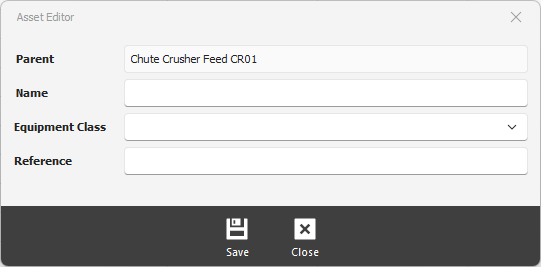
Name - the name of the asset to be added
Equipment Class - select from the enabled Equipment class. If the equipment class is missing, see How to configure Equipment Classes.
Reference - a free text reference to the asset
3. Save configuration
Click on the Save button at the bottom of the window.
3.2 Deleting an asset
1. Select the asset to delete
2. Click on the Minus button to delete
3.3 Editing an asset
1. Renaming an Asset Name
Click on the Asset Name cell. This will active edit mode and will allow you to rename the asset.
2. Changing the Equipment Class
Click on the Equipment Class cell. This will show a drop down list of enabled Equipment classes.
3. Changing the Reference
Similar to the Asset Name, click on the Reference cell to activate edit mode.
3.4 Moving an asset to a different node or level.
If an asset has been added to a wrong node, you can use the drag-and-drop feature to place the asset on the right node.
1. Select the asset you want to move.
2. Drag the asset from the row indicator to the desired level.
