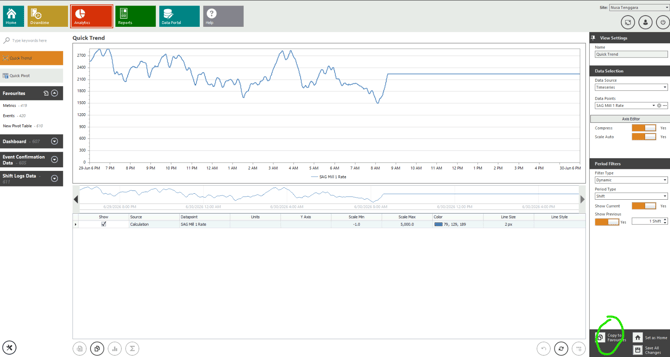
The Quick Trend feature focuses on time-based data analysis. It enables users to track how a particular metric evolves over a defined timeline using a line chart (line series).
Please follow the steps below to create a Quick Trend.
- Navigate to the Analytics Module in Optimum, and from the left-hand navigation menu, click on Quick Trend at the top.
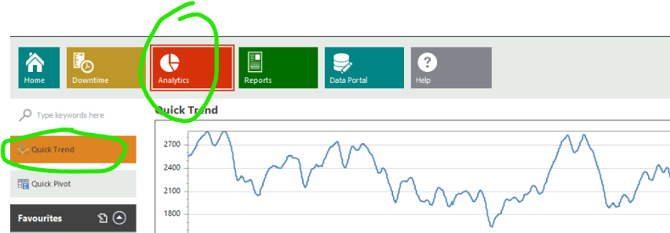
- Click on the
- Once you click on Quick Trend, you can select the desired Data Source from the Data Selection section and configure the Period Filters to define the required date and time range. After setting your preferences, click Save All Changes to generate the trend based on your selected criteria.
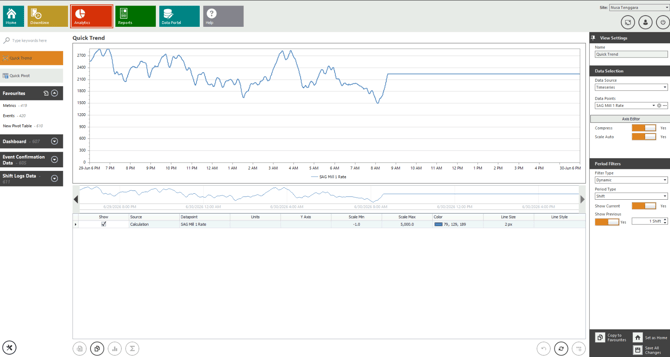
- For the sample Quick Trend shown above, the Timeseries data source has been selected, with “SAG Mill 1 Rate” chosen as the datapoint. Under the Period Filter, a Dynamic filter type is applied, with Shift set as the period type. The configuration includes the current shift along with one previous shift, allowing the chart to display a time-based trend of the SAG Mill 1 Rate over these selected shifts.
Please note that multiple Data Sources are available and can be selected based on your requirements. You can also configure the Period Filter as either Dynamic or a Fixed range, where a specific start date and end date can be defined for the data you wish to analyze. - Once your desired data has been trended, you can save the view to your Favourites by clicking the Copy to Favourites button available at the bottom within View Settings.