1. Locate the classified event
Find the classified event in the data grid.
2. Split the event
You can either split the event in two ways:
-
Right -click on the event and select Split from the menu.
-
Click on the Split button
 from the button panel at the bottom of the screen.
3. Configure the type of Split
Events can be split in two ways:
- Split by Time - To split by time, either drag the slider at the bottom of the graph or enter the time split.
- Split by Depth - To split by value, either drag the slide on the right or enter the split value.
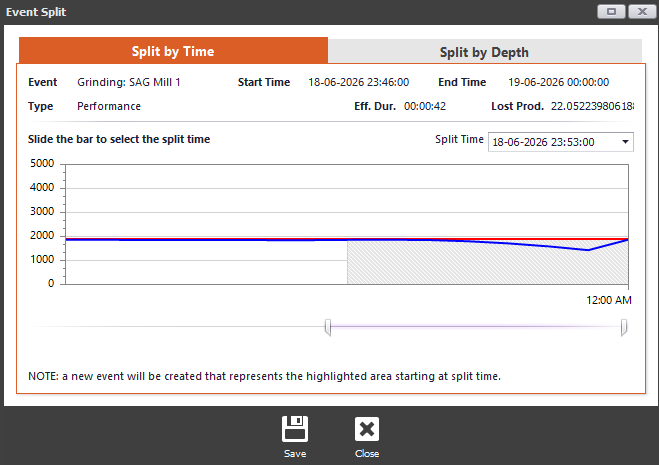
4. Save the Split
Click on the Save button at the bottom of the Window to apply the split choices.
Split events will be displayed with the split symbol.
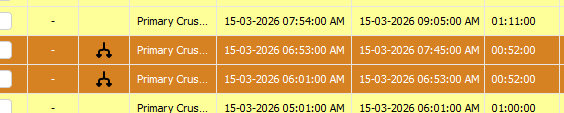
How to Unsplit an Event
1. Locate and select the split event.
Find the split event in the data grid. You only have to select one of the split events.
2. Unsplit the event
You can either split the event in two ways:
-
Right -click on the event and select Unsplit from the menu.
-
Click on the Unsplit button
 from the button panel at the bottom of the screen.
3. Select the appropriate classification
In cases where the split events have been classified, you'll have to select the appropriate classification to be applied on the restored event.