
When raising a support ticket, as a Request Type of Report a Problem, uploading the log file to the ticket will assist in resolving the issue.
To download the log files, do the following:
-
Navigate to the Help module.

-
Select the Raise a Support Ticket from the left panel.
- At the top right, just under the User Profile icon, is the Download Log Files button. Click on it to download the log files. The log files are zipped into a single file.
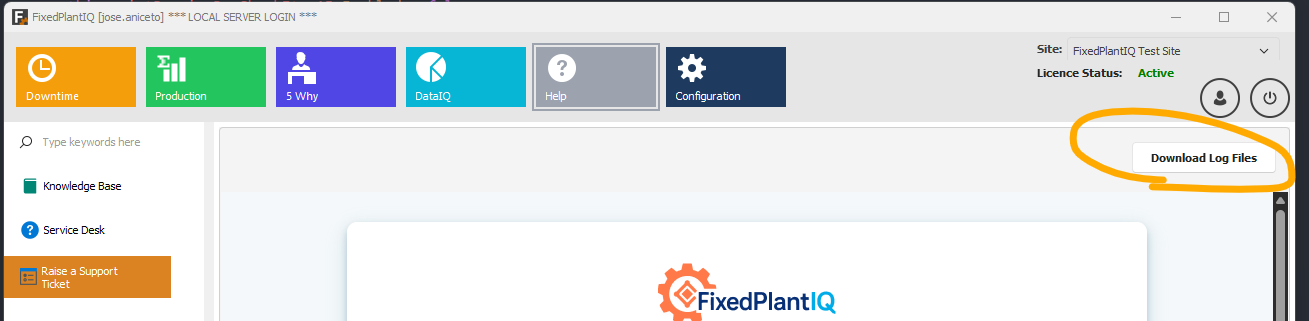
- Save it to your local Downloads folder.
- To attach the log file to the ticket, click on Choose Files button on the form. Navigate to your Downloads folder and select the downloaded log file.