
1. Select the Configuration module

2. Select the General view
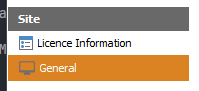
On the left panel, select Site > General
3. Configure Data Historian
Select a Connection Type, you have three options:
-
-
OSI PI - measurement is taken by the OSI PI server. FixedPlantIQ connect to OSI PI via the OSI PI SDK.
-
Wonderware - a database server hosting Wonderware. FixedPlantIQ will connect to Wonderware using Windows datbase drivers.
-
SQL Server - a database server that stores data historian. FixedPlantIQ will connect to any SQL Server database using native SQL Server drivers.
-
OSI PI Connection Type
-
-
Server Name - name of the OSI PI server to connect to
-
Username - username to use to connect to the OSI PI server
-
Password - password to use to connect to the OSI PI server
-
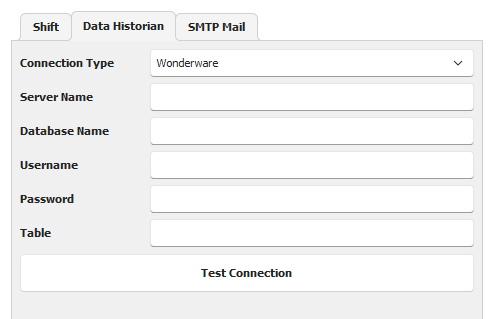
Wonderware
-
- Server Name - name of the Wonderware server
-
Database Name - name of the database that host the Wonderware database
-
Username - username to use to connect to the database
-
Password - password to use to connect to the database
-
Table - the table used to store the instrumentation data
SQL Server
-
- Server Name - name of the database server
-
Database Name - name of the database that host the database
-
Username - username to use to connect to the database
-
Password - password to use to connect to the database
- Query - The query to use to extract the instrument data
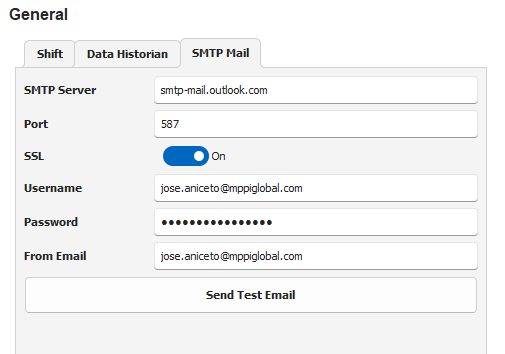
4. Configure STMP Mail
-
-
SMTP Server - the name of the SMTP server that will accept forwarding emails from FixedPlantIQ server.
-
Port - the port number to use, typically 587 is used with SSL on
-
SSL - use encryption between FixedPlantIQ and the mail server
-
Username - username to use to connect to the mail server
-
Password - password to use to connect to the mail server
-
From Email - email to use for reply
-
5. Save configuration
Click on the Save button to save the configuration