
1. Select the Downtime Event
You can select an event using either method:
- From the graph:
Click the point where the event occurred. The corresponding entry will highlight in the data grid. - From the data grid:
Click the event directly.
2. Open the Classification Editor
Open the editor using one of the following:
- Double‑click the event in the data grid, or
- Click the Edit button
 in the panel at the bottom of the window.
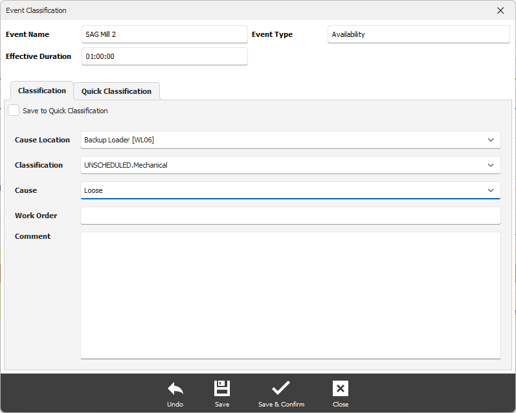
3. Manual Classification
Inside the Classification Editor:
- Identify the Cause Location.
- Select a Classification that best describes the event.
- Select a Cause within the chosen classification.
- (Optional) Click Save to Quick Classification to store your selections for future use.
- Click Save to apply your changes.
The window will close automatically and the downtime record will refresh.
4. Using Quick Classification
- Open the Quick Classification tab.
- Select a saved quick classification from the list.
- Return to the Classification tab–
The selected Quick Classification will be applied automatically.