
Process
Follow the steps below to update the target value and adjust the graph scale for an asset in the Downtime Module.
1. Navigate to the Downtime Module
Open the Downtime Module within the system.
2. Select the Asset
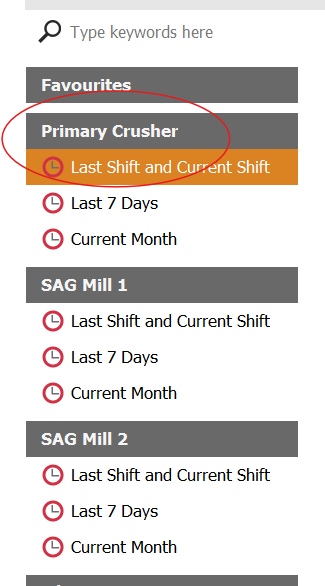
From the list of assets, click the asset for which you want to change the target value.
3. Open the Settings Menu
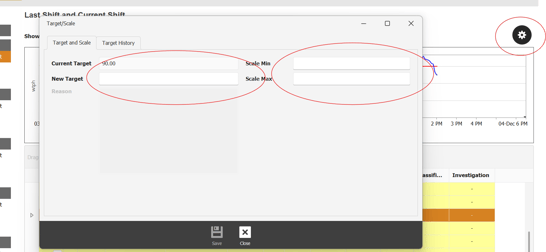
On the right-hand side of the screen, just above the graph, locate the gear icon.
This is the settings button.
Click the gear icon to open the configuration options.
4. Adjust Target Values
A popup window will appear containing editable fields. In this window:
-
Enter the new target value
-
Update the graph scale, including:
-
Minimum value (Min)
-
Maximum value (Max)
-
-
Add comments or justification in the Reason box to support the change
5. Save the Changes
Once all fields are updated, save/confirm your changes.
After saving:
-
The red target line on the graph will update to reflect the new target value
-
The graph scale will adjust according to the new Min/Max settings
Historical changes can be viewed by selecting the Target History tab in the popup window.