To add a new user, head over to the configuration tab. Once in the configuration tab click on the user section.
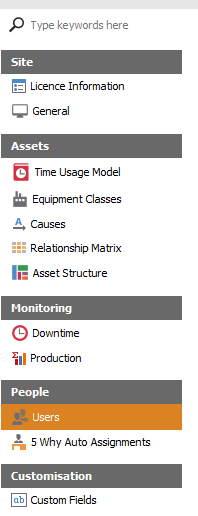
Once in the user tab click on the add record button located at the bottom of the viewer.

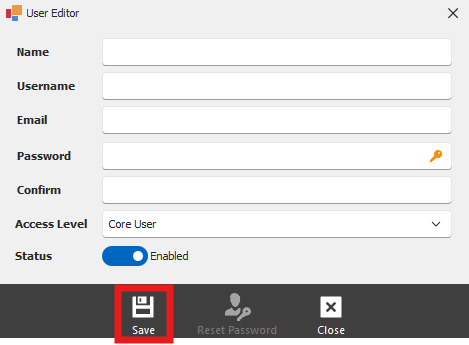
After the User Editor pop up opens, populate with the desired user details. once you've completed filling in the new user details, ensure you click the save button to make certain the new user is added.
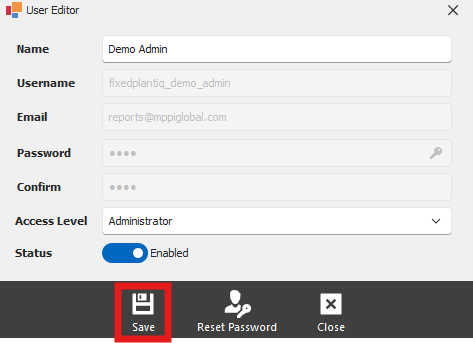
To edit a preexisting user, double click on the user you'd like to edit. The User Editor pop up will appear allowing the user to edit details such as access level and name. Make sure to click the save button to make changes effective.