
1. Navigate to the User module
-
Click on the Configuration from the Top Menu.

-
On the left panel, select People > Users
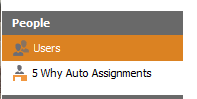
2. Add the user
-
Click on the Plus button at the bottom of the window.
3. Configure the user
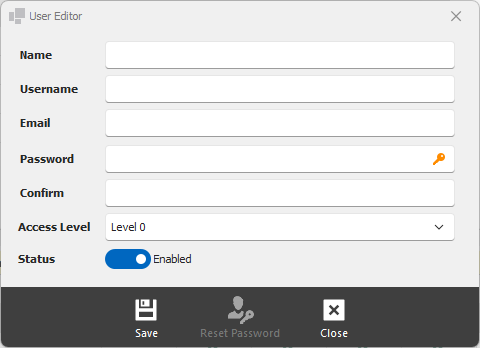
Name - name of the user. This is a free text format and can include Employee ID if desired.
Username - enter a unique username for the user.
Email - enter a valid email address for the user. The email address will be used to recover password.
Password - set the initial password.
Confirm - retype the password for confirmation.
Access Level - select the access level for the user. Consult the chart to see what different access levels are allowed to do.
Status - Enable / Disable the user's login status.
4. Save the configuration
-
Click on the Save button at the bottom of the window.