
1. Locate and select the DataIQ Report

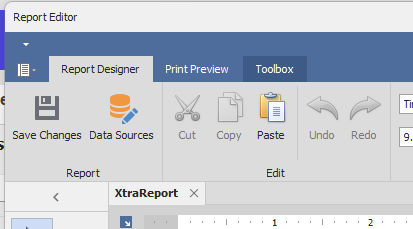
2. Open the Report Designer
After selecting the desired report, click on the edit button , which is located at the bottom of the window.
3. Open the Data Source Editor
Click on the Data Source menu at the top of the designer.
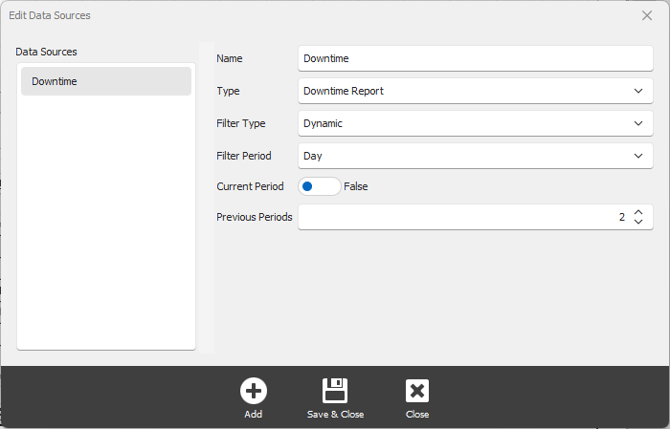
4. Click on the Add button
5. Configure the Data Source
1. Name your Data Source. Data Sources in a report must be uniquely named.
2. Select Type
3. Select Filter Type
- Dynamic date is based on the configured periods
- Fixed Dates will always run the report on the specified date range.
4. Select whether to include the current period or not.
5. Enter the number of periods to cover.
6. Click on Save & Close button at the bottom of the window.