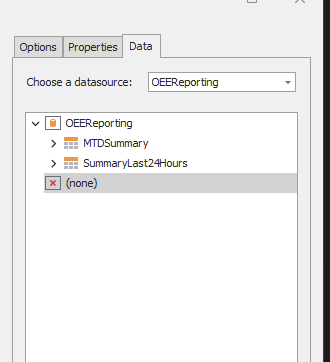
1. Locate and select the report
2. Open the Report Designer
Click on the Edit view button at the bottom of the Window.
3. Add the Chart control
On the left panel, drag the Chart control  to the report detail pane.
4. Open the Chart Designer
Click on the chart on the report and open the configure window.
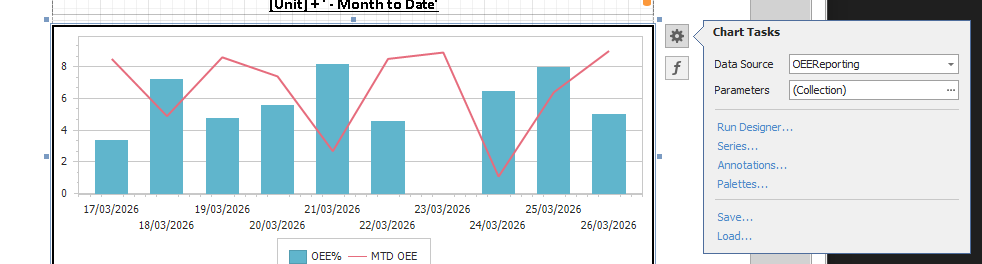
Click on Run Designer on the menu.
5. Configure the Chart
-
Add the series and select the chart to use (line, bar, pie, etc).
- Once the series is added select the series
- On the right panel click on the Data tab
- Select the Data Source
- Drag down the field to represent the X-Axis and drop it to Argument panel at the bottom.
- Drag down the field to represent the Y-Axis, for example rate, and drop it to the Value panel at the bottom.