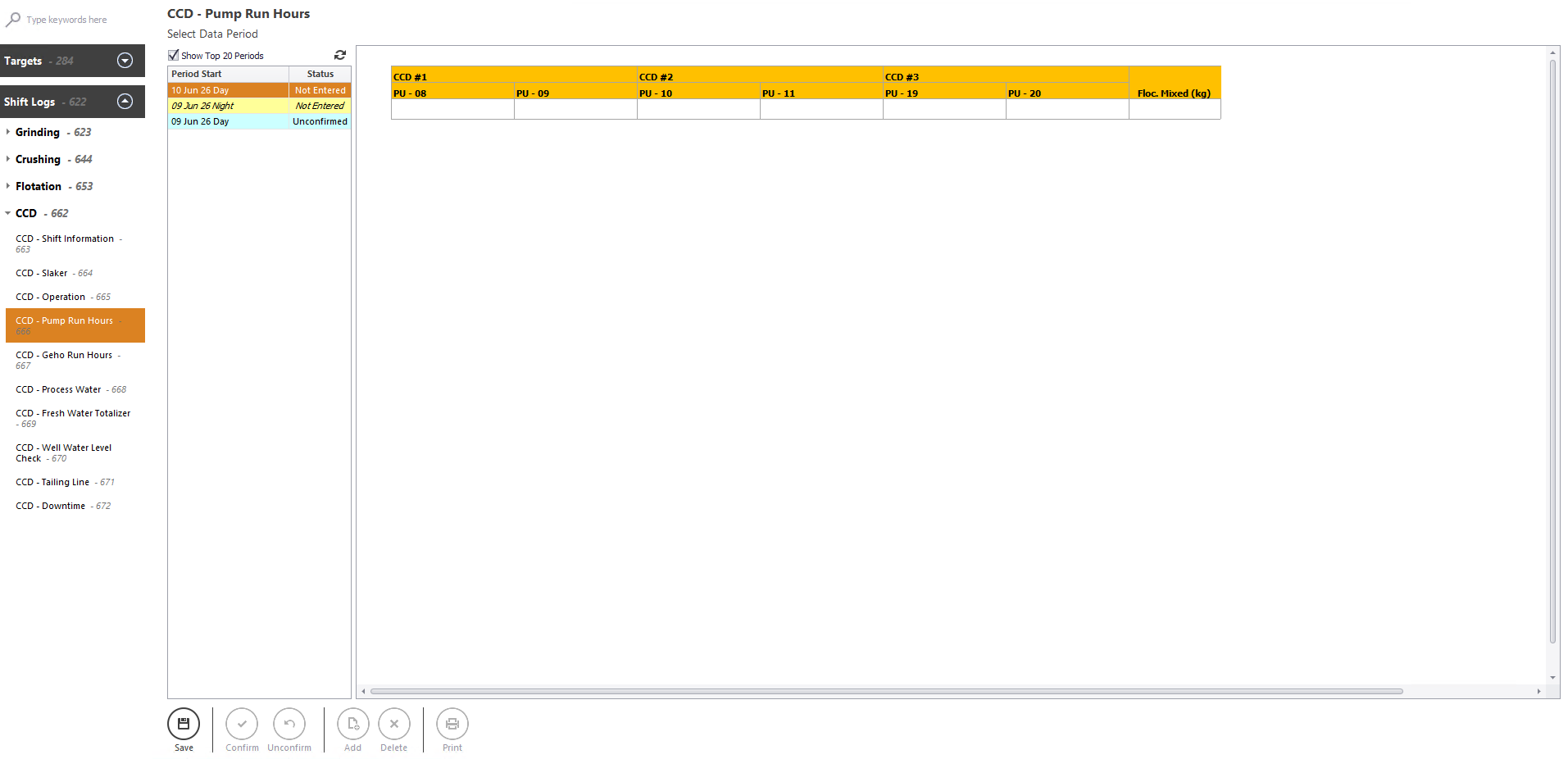
1. Login and Navigate to CCD – Shift Information
- Login into Optimum and navigate to the Data Portal.
- Under Data Portal, click Shift Logs and expand the CCD section.
- Click CCD – Pump Run Hours to open the data entry form.
2. Selecting the Shift to Enter
Under Select Data Period, choose the shift you want to enter.
Shift Status Types:
- Not Entered – No data saved
- Unconfirmed – Data saved but not confirmed
- Confirmed – Finalised and locked
3. Entering Slaker Data
Enter numeric values for the following measurements:
- CCD #1
- PU-08
- PU-09
- CCD #2
- PU-10
- PU-11
- CCD #3
- PU-19
- PU-20
- FLoc.Mixed(kg)
4. Save Entry
- Click Save at the bottom of the form to store the shift entry.
- Once saved, the shift becomes Unconfirmed.
5. Confirm Entry
- After saving, you may confirm the entry if you have the required access.
- Confirming locks the shift — no further changes can be made unless it is unconfirmed first.
6. Unconfirm Entry
- Click Unconfirm if you need to edit a confirmed entry (access‑dependent).
7. Delete Entry
- Deletes the shift entry (only available to authorised users).